


Cast to TV, Chromecast & Roku
4.512.65K Reviews
App Specs
- Version
- 2.5.4
- Updated On
- License
- Free
- Downloads
- 50,000,000+
- Developer
- InShot Inc.
- Categories
- Video Players & Editors
- Platform
- Android
Screenshots
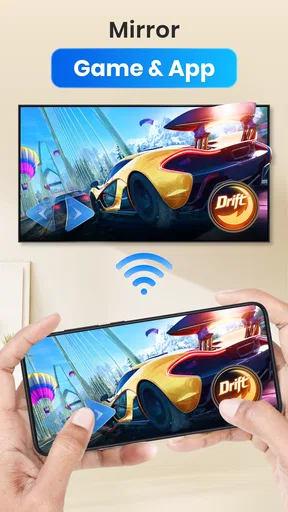
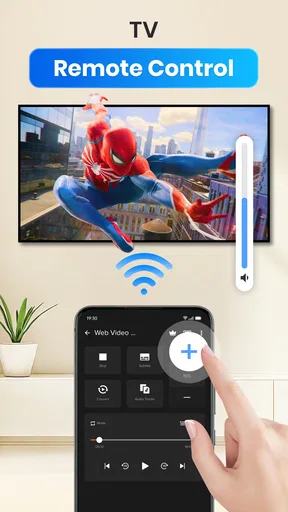
 Analysis by AppCompare
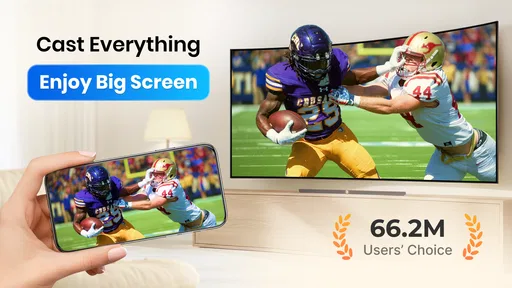
Ever found yourself trying to share your phone’s screen with everyone around you, only to have them squinting at your tiny display? I’ve been there too, and trust me, it’s not fun. That’s where Cast to TV, Chromecast & Roku steps in to save the day. This app is a lifesaver when it comes to streaming your favorite content from your Android or iOS device straight to your big screen. Let’s dive into what makes this app a must-have for any media lover.
What to Expect Before You Cast
I’d think of this as a convenient bridge between media on a phone and a larger screen, rather than a replacement for every TV app. It’s a free video player and casting app from InShot Inc., with a 4.5 average from around 476,000 ratings and over 50 million installs. The Everyone age rating makes it accessible for general audiences, while optional in-app purchases range from $2.49 to $13.99 per item. Those purchases are worth keeping in mind if you prefer to avoid paid extras, but you can start with the free app.
The practical appeal is that you can try one simple task first: find a video on your phone, connect to a compatible display, and see whether casting fits your home setup. That is a better test than installing it just because you occasionally watch video. A phone and TV can be on the same home network yet still fail to see each other if the receiving device is asleep, disconnected, or configured differently, so I’d check that both are ready before troubleshooting the app.
Getting Started with Casting
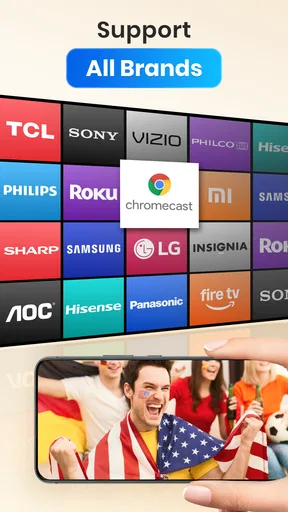
First things first, getting started with Cast to TV is as easy as pie. Once you’ve downloaded and installed the app, you’re just a few taps away from streaming bliss. The app supports both Chromecast and Roku, which is fantastic if you’ve got one of these devices hooked up to your TV.
Upon opening the app, you’ll be greeted with a simple and user-friendly interface. The main screen shows you all your media options – from photos and videos stored on your device to online streaming services. Just select what you want to watch and let the app do its magic.
A Reassuring First Setup
For a first attempt, I’d keep the setup deliberately basic. Turn on the TV and its casting receiver, open the app, and give it a moment to find the device. If nothing appears, check the network connection on both ends before repeatedly tapping around. A receiver connected to a guest network while your phone is on the main network is a common kind of mismatch; switching them to the same network is a sensible first check.
Once a receiver is visible, choose it and try a short personal clip rather than starting with a long movie or a busy webpage. A short test makes it easier to tell whether the connection works and whether the audio and picture are coming through as expected. If the first attempt does not succeed, restarting the receiver and reopening the app is a straightforward next step. I wouldn’t assume a failed discovery means the app is unusable until the TV device and network have been checked.
Worth Reading Before You Choose

EA SPORTS FC Mobile 26 Is a Bigger Football Game, but It Takes Time

Flipboard Shows What News Apps Must Do Beyond the Feed

Switching to Android Auto Means Rethinking Your Driving Routine

Google Calendar Makes a Crowded Week Easier to Manage

Ludo King Makes the Most of the Minutes Between Plans

Baby Panda World Brings Quick Play to Modern Phones, but Its Game Library Feels Busy
Making the First Cast Count
My preferred first meaningful test is a video already saved on the phone. It avoids the extra variables that can come with a website, a streaming service, or a file hosted elsewhere. Pick something you know plays normally on the handset, connect to the TV, and use the phone’s playback controls to pause or resume. This confirms not just that the receiver is found, but that the basic viewing routine suits you.
That small test also helps set expectations about what “casting” means in practice. The phone is useful for choosing content and controlling playback, while the TV becomes the place everyone watches. For a family clip, a short travel video, or photos you want to show guests, that can be much more comfortable than passing a phone around. For a private video call or anything you do not want visible to the room, casting is naturally the wrong choice.
Seamless Connectivity
One of the standout features of this app is its seamless connectivity. I was amazed at how quickly my phone connected to my TV. There was no lag or buffering, which can be a real buzzkill when you’re trying to watch something in real-time. The app effortlessly discovers available casting devices on your network, making the whole process smooth and straightforward.
What’s also cool is the app’s ability to cast a variety of file formats. Whether it’s a video you shot on your phone or a downloaded movie, Cast to TV handles it all. It also supports HD quality streaming, so you’re not compromising on video quality when you cast.
What to Try When Casting Feels Unclear
There are a few different routes to a larger screen here, and it helps to know which one you are using. Playing a saved file, browsing to a video online, and mirroring a phone screen are not quite the same workflow. If one route is unreliable, try another with content you can access directly on the device. For instance, if a webpage does not play as expected, test a local clip before deciding the whole connection is the problem.
Network quality also matters more for longer viewing than for a quick demonstration. If a video pauses, I’d first check whether other devices are heavily using the home connection and whether the receiver remains connected. A phone can feel responsive while the TV stream struggles, so it is useful to separate app navigation from the stability of the network path. For dependable viewing of a long film, the TV’s own streaming app may be the simpler option.
User Interface and Experience
The user interface is another area where this app shines. It’s designed with simplicity in mind, ensuring anyone can navigate through it without a hitch. The buttons are large and well-labeled, making it easy to find what you’re looking for. Plus, the app is lightweight, meaning it won’t hog your device’s memory.
I especially loved the remote control feature. This allows you to control playback directly from your phone. You can pause, play, or skip to the next video without having to reach for your TV remote. It’s small touches like these that enhance the overall user experience.
Where It Fits Compared with Other Choices
Compared with using a TV’s built-in apps, a casting app is most useful when the thing you want to watch is already on your phone or easier to find there. It can also be handy when you want to show personal media without first moving files to another device. On the other hand, built-in TV apps tend to be a better choice for regular viewing of a service you already use on the television, because they avoid making your phone part of the viewing chain.
Screen mirroring is another familiar alternative, but it shows the phone’s broader display rather than focusing only on the media you selected. That can be useful for demonstrating an app or sharing something that has no straightforward cast option. For a video, though, a direct cast is often less awkward: notifications and unrelated phone activity are less likely to become part of what everyone sees. I’d choose the method based on the task, not assume one is always better.
Streaming from Online Services
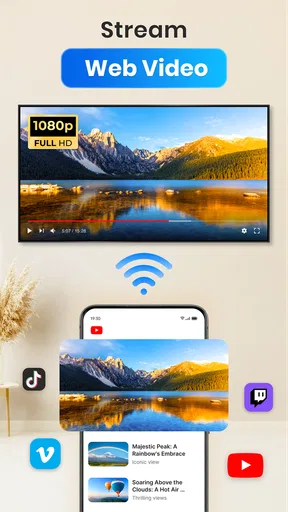
Streaming from online services is a breeze with this app. Whether you’re a fan of YouTube, Vimeo, or any other online video service, Cast to TV has got you covered. Simply browse to your desired content within the app and hit the cast button. It’s really that simple.
Additionally, the app provides a nifty browser feature that lets you stream videos from websites directly to your TV. This means you can watch videos that aren’t available on your usual streaming platforms, opening up a whole new world of entertainment possibilities.
Choosing the Right Content and Workflow
The browser route is useful when a video lives on a website rather than in a familiar service, but it is also the route I’d test before settling in for a long watch. Webpages can behave differently from one another, and finding a video on a page does not guarantee that every element around it will be comfortable to navigate from the couch. If you already know the exact clip, starting from its page is more practical than browsing aimlessly on the TV.
For a casual evening, I’d use the app to share a few phone videos or an online clip with friends, then hand playback control to whoever is closest to the phone. For a more deliberate movie night, I’d compare that convenience with opening the same service on the TV itself. This app is strongest when it saves a transfer or makes a quick share easy; it is less compelling when the TV already provides a smooth, familiar way to watch the same content.
Who Will Get the Most from It
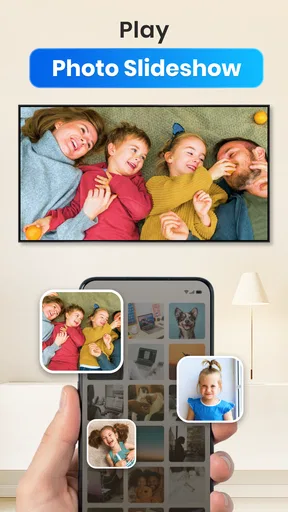
I can see this being a good fit for people who keep videos on their phone, regularly show photos to other people, or want a straightforward way to send web video to a compatible screen. It is also helpful in a household where the TV receiver is already in place and different people bring content from their own devices. The app runs on Android 7.0 or later, and its current version is 2.4.6.1, so people using older Android devices should check that requirement before installing.
I’d be less likely to recommend it to someone who only watches through TV-native services, wants a dedicated media library across devices, or expects every website and file to behave identically. People who need a carefully controlled presentation should also test their exact content before an event rather than relying on a last-minute connection. In that situation, a cable or a presentation tool designed for the specific material may be more predictable.
Final Thoughts
In conclusion, Cast to TV, Chromecast & Roku is an excellent app for anyone looking to enhance their media streaming experience. With its easy setup, seamless connectivity, and user-friendly interface, it’s hard not to love what this app offers. Whether you’re hosting a movie night or just want to enjoy your media on a bigger screen, this app is your go-to solution.
So, if you haven’t tried it yet, go ahead and give it a shot. You’ll wonder how you ever lived without it. Happy streaming!
Pros
- Seamlessly connects to multiple devices.
- User-friendly interface and setup.
- Supports a wide range of media formats.
- High-quality streaming with minimal lag.
- Regular updates and bug fixes.
Cons
- Occasional connectivity issues.
- Some features require in-app purchases.
- Limited support for certain file types.
- Ads can be intrusive at times.
- Not all TVs are fully compatible.
FAQs for Cast to TV, Chromecast & Roku
How does Cast to TV, Chromecast & Roku work?
Cast to TV, Chromecast & Roku allows you to wirelessly stream media content from your smartphone to your TV. By connecting your device and TV to the same Wi-Fi network, you can easily cast videos, music, and photos. The app supports popular streaming devices like Chromecast and Roku, ensuring a seamless viewing experience.
Is Cast to TV, Chromecast & Roku compatible with all TVs?
The app works with any TV equipped with a Chromecast or Roku device. If your TV has an HDMI port, you can use a Chromecast or Roku stick to enable casting. Additionally, some smart TVs have built-in support for these devices, making them compatible without extra hardware.
Does Cast to TV, Chromecast & Roku support all media formats?
The app supports a wide range of media formats, including popular ones like MP4, MKV, MP3, and JPEG. However, not all formats may be compatible with every TV or device. It's recommended to check your TV's supported formats or convert your files if you encounter any issues during playback.
Are there any in-app purchases or subscriptions required?
Cast to TV, Chromecast & Roku offers a free version with basic features. However, for an ad-free experience and access to premium features such as enhanced media controls and format support, in-app purchases or a subscription may be necessary. Always check the app store description for the latest pricing details.
Can I use my phone while casting with the app?
Yes, you can use your phone for other tasks while casting content to your TV. The app runs in the background, allowing you to browse the internet, send messages, or even take calls without interrupting the streaming. This multitasking capability makes it convenient for users to enjoy seamless entertainment.


